Hi everyone,
So here it is, my very first podcast! I had fun testing out 3 different audio tools that can be used in classrooms. Have a listen and let me know what you think!
I reviewed the following audio tools:
1) Audacity
2) Podomatic
3) Audioboo
Monday, 4 November 2013

Wednesday, 30 October 2013
Tech Tools for Your Classroom
We teachers are very fortunate to live in the times of technology! We have access to so many educational resources that can benefit both student and teacher learning. Of the abundance of resources and tools that exist, I have reviewed 3 that I find to be very useful in classrooms.
1. Bitstrip is a great educational software tool to use with students. It is a comic builder where students can create comics regarding any subject. It is a creative device that allows students to communicate their ideas in a unique comic format. One of the reasons why I like Bitstrip so much is because you can use it for any subject (like Language Arts, Geography, etc.) and for many social issues (bullying, world issues, etc.), for students to communicate their knowledge and understanding of a particular topic. It’s interactive and visually fun format can help to engage students.
2. Edmodo is another great educational tool for teachers to incorporate in their classrooms. Edmodo is a free online software, that is often thought of as the “Facebook” for schools. It is a very user-friendly program that allows teachers, students, and parents to communicate together. It has many uses including: homework listing, student learning groups, reminders to students and parents about upcoming events and deadlines, posting resources, write summaries, and more.
3. Raz Kids is a popular technology resource used in many schools. Raz Kids is an online program that has hundreds of animated e-books that are spread across 27 different levels of reading difficulty. Raz Kids practices great modeled reading - students listen to books online, while the words are highlighted across the screen to ensure that students are following along, and can hear how each word is spelled and pronounced. The pace at which the book is read can be changed, therefore, students can read the book at whatever speed is most comfortable to them. Students can also practice reading the book out loud to practice their fluency. There are also comprehension questions at the end of the books to check for understanding.
As much as Raz Kids is designed for students, it is also very teacher focused as well. Teachers can log in, and can see the progress that their students are making. It also has a running records tool that helps you to determine what reading level your students are at. Teachers can then limit students to particular leveled books. It is useful that it is very inline with the Ontario curriculum standards. There are also a ton of helpful videos for teachers to learn how to use all of the tools that are available to them with Raz Kids. Although Raz Kids is not free, I have found and heard from other teachers that many school boards have access to it. If you have access to it, I recommend using it. If not, you can try the 7 day trial to determine whether you think it would be useful to purchase for you and your students.
 |
| http://www.bitstripsforschools.com/ |
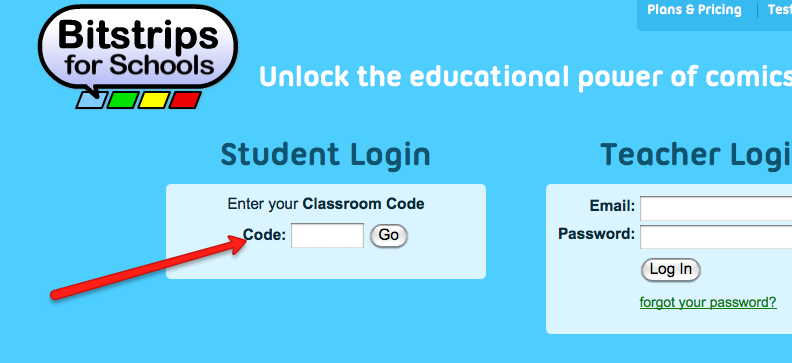
It works like this: teachers can create a ‘classroom’ with a class name and a class code. Teachers then share the name and the code with their students and then students are free to log on. Students can then create an avatar of characters in which they can personalize as much as they would like. The comic builder is easy to use, and it is nice that you do not have to have artistic skills to make it successful. Students can share their comics with the whole class or just the teacher. You can return it to the students with private and individual feedback. There is even a commenting feature where classmates can give feedback. I recommend it trying it!
 |
| https://www.edmodo.com/ |
Edmodo is also a safe online environment for peers and teachers to communicate as it is controlled and monitored by the classroom teacher. Students can only communicate to the class and to the teacher. My experience with Edmodo was in a Special Needs classroom, where at the end of the day, the students would post on Edmodo what they did that day at school, and any homework that they may have. This was a great way for parents to be involved, and to follow up with their children about what they learned at school.
 |
| http://www.raz-kids.com/ |
 |
| http://www.raz-kids.com/main/TeacherCorner |
As much as Raz Kids is designed for students, it is also very teacher focused as well. Teachers can log in, and can see the progress that their students are making. It also has a running records tool that helps you to determine what reading level your students are at. Teachers can then limit students to particular leveled books. It is useful that it is very inline with the Ontario curriculum standards. There are also a ton of helpful videos for teachers to learn how to use all of the tools that are available to them with Raz Kids. Although Raz Kids is not free, I have found and heard from other teachers that many school boards have access to it. If you have access to it, I recommend using it. If not, you can try the 7 day trial to determine whether you think it would be useful to purchase for you and your students.
Monday, 21 October 2013
Google Drive vs. Open Office
I have spent the past few days exploring two popular and free word processing programs: Google Drive, and Open Office. I found both of these programs to be amazing, and can see their potential for classroom use.
 |
| https://drive.google.com/ |
 |
| http://www.openoffice.org/ |
I like that Open Office and Google Drive both allow for different text templates to be downloaded. Open Office provides various templates that you can download, and Google Drive provides many different Apps that you can add to your Google Drive, one being a Templates App. Templates that you can retrieve are a Resume template, or a Brochure template, or a Calendar template, and many more.
I think that both of these programs are great to use with students as they are free, easily accessible, and easy to navigate and use.
Saturday, 12 October 2013
Learning Resources Available for Ontario Teachers, Parents, and Students
.png "OSAPAC logo") |
| http://www.osapac.org/cms/ |
We have access to an abundance of technology resources
for our students.....which we may not even know about! Technology resources can support student learning,
and with teacher support and guidance, these resources can coincide with
students learning in the classroom. It
is through the Ontario Software Acquisition Program Advisory Committee (OSAPAC) website that you can find out which resources are available for your classroom
to support student learning. You can go
to the OSAPAC website and browse the different resources and software available to educators
in Ontario. For each resource the OASPAC provides: a
description with some key features; often offers a few
points on why to use this resource in schools; software distribution rights;
and technical information. There are
also curriculum connections (for various grades and strands) that are outlined with
each resource, providing teachers with how and why they should use this
resource in their classroom. For some
resources (like Bitstrip) you can download them straight from the OSAPAC link,
but others you may need to contact your Ontario Educational Software Service (OESS)
representative for downloading instructions.
Your OESS representative can also provide you with log-on passwords for
the particular resource. Each school
district has an OESS representative, and they are easy to find. All you need to do is go to the OESS website
and click contact search. Then type in your school district and your representative’s
contact information will be available to you.
 |
| Credit: http://msjonesbaker.com/Images/school-girl-using-computer.png |
On the Toronto Catholic District
School Board website, I found this “Teachers Want to Know, a tip sheet for teachers to improve teaching and learning through use of Ministry licensed software and web services” document. I found this tip sheet to be very useful for learning and
navigating the OSAPAC website. This tip sheet also outlines 12 web services licensed
by OSAPAC that are available to teachers, parents and students from home and
school. I recommend checking them out and using them, as students can really benefit from using these tools simultaneously at home
and at school.
Wednesday, 9 October 2013
Blended Learning in Our Classrooms...The Way of the Future
 |
| Source: Dwight Carter's Blog |
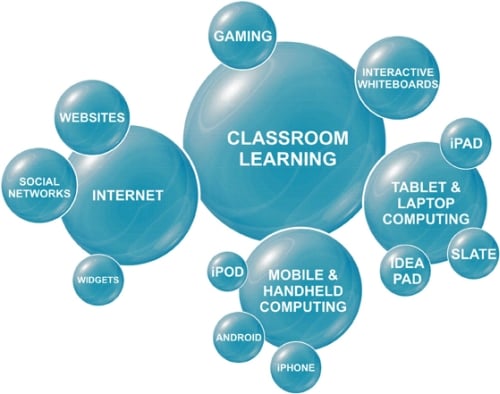
Blended learning is different from e-learning, as e-learning is
solely learning online, and blended learning is the combination of learning in a
classroom and learning online. Although e-learning can have it's
benefits, such as convenience, I believe that blended learning is the better
alternative for our students as the social learning that takes place
face-to-face is equally important.
An example of blended learning in the Primary division could be
in a community unit. Teachers could teach different types of communities
(cities, farm, suburbs, rural, parks, etc.) with the students through reading a
picture book on the subject and through discussion. Students can then do work
online. The teacher can put up pictures of different communities on computer or
iPads and students can identify what is unique to each particular community.
An example of blended learning in the Junior division is
discussing a Social Studies topic like Exploration and Jacques Cartier's
expeditions to North America. Then students can create a comic online using
"Bitstrip" of the events that happened using their own words and interpretations
of the events.
In an Intermediate Math/Environment class, students could be
responsible for researching an environmental topic (like how much water do
people in North America use when washing dishes vs. using a dish washer, and
taking a shower vs. taking a bath, and brushing your teeth with the tap running
vs. brushing your teeth with the tap off). Students could then put this
information into a graph to see the differences.
I wonder, does the skill of
learning through technology need to be taught to students? How do we teach
skills such as researching? And time management?
Wednesday, 2 October 2013
Tech Blogs Worth Reading
Hi everyone,
I have looked into a few education/tech blogs, and I chose to reflect on the following three blogs. They are all great - totally worth checking out!
1. Free Technology for Teachers by Richard Bryne
At first glance, I thought that
there may be too much on this blog. However once exploring further, I realized how
GREAT this blog is. It is truly a wealth of knowledge. This is definitely one
to add to your ‘favorite’s bar’. Richard Bryne seems very knowledgeable about
technology, and I read that he has run many workshops on blogging – so this guy knows what he's doing!
There are many things I like about
this blog. Firstly, I like that Richard posts information about new technology
(some that I have never heard of prior to his blog), and gives recommendations
of how to use it in the classroom. For
each (free) technological resource that he introduces he also provides an
“application for education” section. For
example, he provides information about Metta, a digital presentation tool, and
Postasch.io, a blog tool that can easily be connected to your Evernote account.
He then provides readers with ideas of how these resources could be used in the
classroom.

At the end of each post, there are relevant links to the topic he blogged about. He titles
these additional links “You might also like”.
I want to add a section similar to this on my blog! I believe this gives
readers more sources of information about the topic, adding to their knowledge
base, and encourages the reader to think critically about the topic as they
become more familiar and aware.
I also like the tabs at the top
of this blog. The tabs seem relevant and
of importance to teachers who are keen on using technology in their
classrooms. For instance, one tab is
iPad Apps for School. When you click the tab, it takes you to another blog by
Richard that outlines educational Apps.
The Langwitches blog is another
valuable source for technology teachers.
It has an abundance of information for teachers on how to incorporate
technology in their classrooms. There
are ample posts of specific examples of how technology was used to enhance
learning in the classroom (for instance, how a Kindergarten class used iPads, collages, and a book creator app in their Transportation Unit). It’s very cool – I recommend checking it out (Kindergarten Transportation Unit). Other posts include hot professional learning
topics, and opinions on certain issues in the technology world that teachers may
be dealing with or thinking about (for instance, how to be a connector in
schools, and information on global learning).
 I like the topics of the sub
sections along the middle and the sides, which include subjects such as “global
education” and “Blogging with your classroom” “iPads” and “Digital
Storytelling”. I think I would find it
easier to navigate if the tabs where at the top. However, the blogger does
provide a search where you can choose a category.
I like the topics of the sub
sections along the middle and the sides, which include subjects such as “global
education” and “Blogging with your classroom” “iPads” and “Digital
Storytelling”. I think I would find it
easier to navigate if the tabs where at the top. However, the blogger does
provide a search where you can choose a category.
I did find the blog a little overwhelming
while navigating, due to the abundance of tabs with blog posts all around. I
found myself wanting to check out something new and totally different before
finishing the original post I was reading. With that said, it is a great
resource for technology teachers as it provides practical application
suggestions and professional learning topics all on one site. I recommend it!
I quite like the layout of Beth’s blog, as I find it
concise, and therefore easy to navigate. I
like that her blog has different sites and has a recommended reading list under
subheadings to the right of the page. The tabs at the top are very
straightforward as there are only four: Home, Archives, About, and
Contact.
Beth makes
it easy to navigate through the archives as you can search for posts by
category, month, or her last 50 posts. I like that she groups her blog posts
into categories, so if teachers are looking for information on a particular
topic, it can be easily found.
Beth’s blog
mainly focuses on professional learning.
She focuses both on general topics related to teaching, and
teaching with technology. For instance, she has one blog post on How to Change Education, where she recommends watching a Ken Robinson video (great video). And she also has another blog post on Tech Integration and Classroom Instruction.
I really
like Beth’s blog as a professional learning resource. If you are searching for more real-life examples of how technology was used in units and lessons, I would
check out one of the other two blogs mentioned above.
Sunday, 29 September 2013
Social Media in the Classroom
In our Tech Class, we were asked to post our opinions on how we could safely
include social media in our classrooms. This really got me thinking, as
social media is such a prominent aspect of student's lives these days.
But there is such a fine line on how to use it as a safe classroom tool.
I knew it could be done I just had to figure out how. Two main
articles really laid it out clearly for me. Reading, “50 Ways to Use Twitter in
the Classroom” and the article that Holly, a fellow Tech student posted, “Social media for schools: a guide to Twitter, Facebook
and Pinterest” really opened my eyes. I truly didn’t really know how to
integrate Twitter and Facebook into the classroom before. Now, I feel
inspired with the possibilities.
In terms of safety surrounding using social media in the classroom I thought of these ideas that I could approach with students:
1. Only follow people who are your friends.
2. Teach students how to set up their privacy settings
3. Create a classroom Twitter/Facebook that will only be used for classroom purposes. Discuss with students expectations for posting, specifying that twitter and Facebook will be used as a classroom tool and not for personal purposes.
4. Monitor students’ tweets/Facebook posts.
5. Create a Twitter board to practice using twitter before the real deal.
6. Assess student’s use of twitter/Facebook. Discuss expectations with the students so they will know how they will be assessed.
A few of the ideas in the article “50 ways to use Twitter in the classroom”, stuck out to me, and I hope to use them in my future classroom.

In terms of safety surrounding using social media in the classroom I thought of these ideas that I could approach with students:
1. Only follow people who are your friends.
2. Teach students how to set up their privacy settings
3. Create a classroom Twitter/Facebook that will only be used for classroom purposes. Discuss with students expectations for posting, specifying that twitter and Facebook will be used as a classroom tool and not for personal purposes.
4. Monitor students’ tweets/Facebook posts.
5. Create a Twitter board to practice using twitter before the real deal.
6. Assess student’s use of twitter/Facebook. Discuss expectations with the students so they will know how they will be assessed.
A few of the ideas in the article “50 ways to use Twitter in the classroom”, stuck out to me, and I hope to use them in my future classroom.
1. Create a classroom ‘group’ on Facebook and ‘list’ on twitter.
2. Tweet about homework and assignment clarification and deadlines.

3. Students can post or tweet if they are having any issues completing an assignment. They can ask each other for help and ask the teacher for help.
4. Students can keep up with current issues, and can re-post or tweet information from the news.
5. Students can follow politics and politicians in the area.
6. Teacher can post educational websites for students and parents.
7. Teachers can promote different clubs/extracurriculars on Facebook and Twitter.
Another
way I saw Facebook being used was in a high school here in BC, the leadership
students had a group on Facebook, where they could organize events. For
instance, this was at the beginning of the year, and students were sorting out
which events they would run at the school throughout the year. They used their
Facebook group to share ideas, and to then sign up for which events they wanted
to help out with. Pretty cool!
Subscribe to:
Posts (Atom)